RemoveTexts vs Shrinkpad
Side-by-side comparison to help you choose the right product.

RemoveTexts
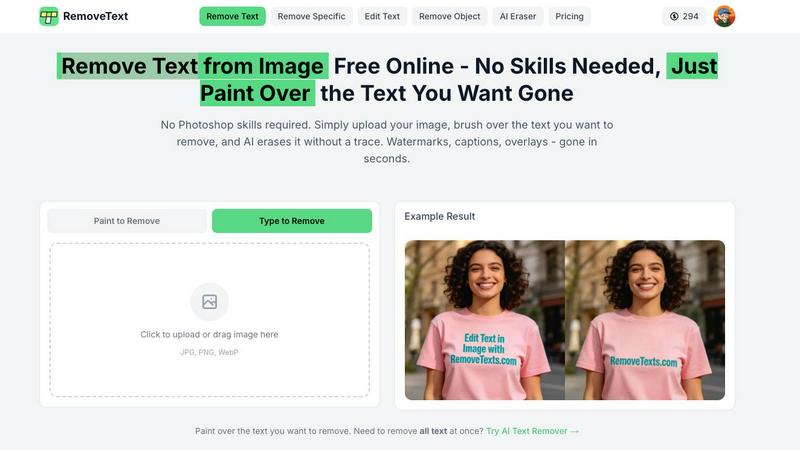
RemoveTexts is a free AI tool that instantly removes any text or watermark from your images with a simple brush.
Last updated: March 11, 2026

Shrinkpad
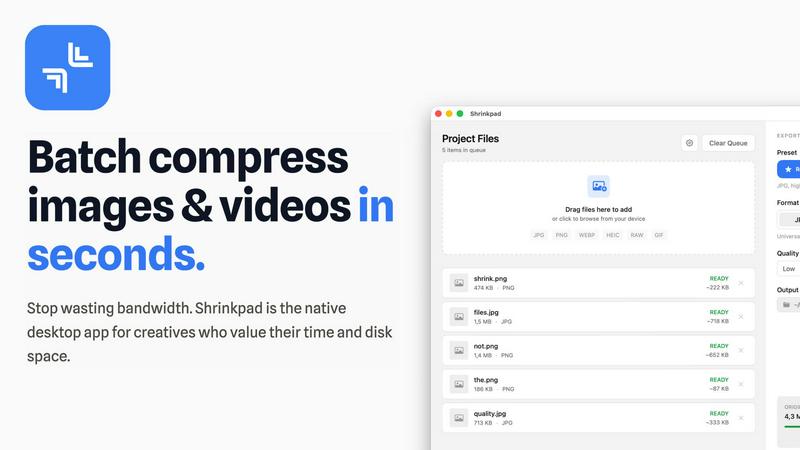
Shrinkpad compresses images and videos in bulk on Mac to save you time and disk space effortlessly.
Last updated: February 28, 2026
Visual Comparison
RemoveTexts
Shrinkpad
Feature Comparison
RemoveTexts
Paint to Remove
This feature gives you precise control over the text removal process. Simply upload your image and use a digital brush to paint directly over the specific words, watermarks, or captions you want to erase. The AI then processes only the painted areas, ensuring you can remove text selectively while keeping other desired text intact. It's perfect for targeted edits where auto-detection might be too broad.
Auto Remove All Text
For images cluttered with multiple text elements, this one-click feature is a massive time-saver. The AI automatically scans your entire image, detects every instance of text—including watermarks, subtitles, date stamps, and overlays—and removes it all simultaneously. It seamlessly reconstructs the background in each area, delivering a completely clean image in seconds without any manual selection required.
Edit & Replace Text
Go beyond simple removal by editing existing text directly within your image. This powerful feature allows you to change words or phrases, and the AI will generate new text that matches the original font style, size, and color. It intelligently blends the new text into the background, making it look as if it was part of the original image, which is ideal for updating graphics or correcting mistakes.
Remove Objects
While focused on text, RemoveTexts also provides a versatile object removal tool. You can erase unwanted visual elements like logos, people, or distracting objects from your photos. Using the same brush tool, you paint over the object, and the AI fills in the space by analyzing the surrounding pixels, effectively removing the element while preserving the natural look of the image background.
Shrinkpad
Intelligent Batch Compression
Shrinkpad automates the most complex part of compression: choosing the right settings. It automatically analyzes the visual complexity of each image and video to apply the perfect compression ratio, avoiding artifacts and preserving quality. You can process thousands of files in a single batch, mixing images and videos together, and the app will handle each format with optimal settings, saving you from manually guessing and adjusting sliders for every file.
Folder Mode & Smart Detection
Stop dragging files individually. With Folder Mode, you simply drop any folder onto Shrinkpad, and it instantly scans and identifies all supported media files within, including those in subfolders. It smartly detects over 50 formats, from common JPGs and PNGs to RAW photos and HEIC images, plus major video formats like MP4 and MOV. Non-media files are safely ignored, making bulk organization and compression incredibly straightforward.
Local Processing & Privacy-First Design
Every compression task happens locally on your Mac using native macOS frameworks. This means your original high-resolution assets, client work, or sensitive media are never uploaded to a remote server. You maintain complete control and privacy, while also benefiting from faster processing speeds since there's no bandwidth bottleneck for uploading and downloading large files.
Advanced Workflow Features for Professionals
Beyond basic compression, Shrinkpad includes power features tailored for professional workflows. It can automatically rename batches of files, strip metadata for cleaner assets, and handle massive file sizes without crashing. Optimized for Apple Silicon, it uses multi-threaded processing for lightning-fast performance, allowing you to quickly optimize app bundles, website assets, or project archives.
Use Cases
RemoveTexts
Cleaning Product Photos for E-commerce
Online sellers can use RemoveTexts to quickly clean up product images by erasing promotional watermarks, price tags, or distracting text overlays from supplier photos. This results in professional, brand-consistent imagery for their storefronts and marketing materials, helping products look their best and improving conversion rates without a graphic designer.
Preparing Professional Screenshots and Presentations
Professionals creating tutorials, reports, or presentations often need clean screenshots. RemoveTexts allows them to easily brush away irrelevant UI elements, browser tabs, personal data, or system watermarks from screenshots. This ensures the focus remains on the intended content, making documents and slides look polished and professional.
Redacting Sensitive Information
Legal, real estate, and administrative professionals frequently need to share documents while protecting private data. RemoveTexts provides a fast way to redact names, addresses, account numbers, or other sensitive text from scanned documents or photos before distribution, helping maintain confidentiality and comply with privacy regulations.
Creating Clean Social Media and Marketing Graphics
Content creators and marketers can repurpose existing images by removing outdated captions, website URLs, or competitor logos. This feature is perfect for refreshing old graphics, creating versatile visual assets from branded templates, or simply removing unwanted text from memes and photos to make them more shareable and on-brand.
Shrinkpad
Optimizing Website and App Assets
Developers and web designers can use Shrinkpad to batch compress hero images, product shots, icons, and promotional videos. Reducing these asset sizes by 70-90% directly leads to faster website load times, improved Lighthouse performance scores (like LCP), and smaller app bundle sizes, enhancing the end-user experience and SEO rankings without a tedious, file-by-file optimization process.
Managing Photography and Design Projects
Photographers and digital artists often export high-resolution files from Lightroom or Photoshop, resulting in massive folders. Shrinkpad allows them to export everything at full quality, then quickly run the entire project folder through compression. This reclaims terabytes of disk space over time while keeping a high-quality visual archive, perfect for client delivery, portfolio sites, or cloud backup.
Preparing Content for Social Media and Marketing
Content creators and marketing teams need to prepare dozens of images and video clips for social platforms, email campaigns, and ads. Shrinkpad streamlines this by letting them drop a week's worth of content into the app, compressing it all in one go to meet platform file size limits while maintaining visual fidelity, ensuring faster upload times and efficient use of storage.
Archiving and Cleaning Up Digital Libraries
Anyone with a large personal library of photos, screenshots, or home videos can use Shrinkpad for digital spring cleaning. Dragging the entire "Pictures" or "Downloads" folder into the app can compress years of accumulated media, freeing up significant space on a Mac's drive for new projects and files, all while keeping the library visually intact and accessible.
Overview
About RemoveTexts
RemoveTexts is a free, AI-powered online tool designed to solve a common digital problem: removing unwanted text and elements from images quickly and professionally. It eliminates the need for complex software like Photoshop by offering a simple, one-click solution. The tool uses advanced deep learning inpainting technology, similar to that pioneered by industry leaders, to intelligently detect text and seamlessly reconstruct the background, leaving no trace behind. It's built for anyone who works with images, from marketers and social media creators needing clean product photos and social graphics, to professionals redacting sensitive information from documents, or individuals wanting to tidy up personal screenshots and memes. The core value proposition is delivering high-quality, 4K output results in under 30 seconds without requiring any technical skills or design expertise, making professional image editing accessible to everyone.
About Shrinkpad
Shrinkpad is a powerful, native desktop application for macOS designed to solve the critical problem of bloated media files. It specializes in batch compressing images and videos directly on your Mac, eliminating the need for slow, privacy-compromising cloud uploads. This tool is built for photographers, designers, content creators, developers, and anyone who regularly handles large volumes of photos, screenshots, or video clips that consume excessive disk space and slow down workflows. The core value proposition is threefold: immense speed through local processing with Apple Silicon optimization, uncompromising privacy as files never leave your computer, and intelligent compression that can reduce file sizes by up to 90% without perceptible loss in quality. By allowing users to drag and drop hundreds of files or entire folders for processing in seconds, Shrinkpad transforms a tedious, manual task into an automated, efficient process, saving hours of busywork and reclaiming gigabytes of storage.
Frequently Asked Questions
RemoveTexts FAQ
How does RemoveTexts work?
RemoveTexts uses a sophisticated deep learning model called an inpainting neural network. When you paint over text or use the auto-remove feature, the AI analyzes the pixels surrounding the selected area. It then intelligently predicts and generates a new background that seamlessly matches the texture, color, and patterns of the original image, effectively filling in the space where the text was located without leaving any traces.
What image formats and sizes are supported?
The tool supports common image formats including JPG, PNG, and WebP. You can upload files up to 10 MB in size. This covers most high-resolution images from smartphones, cameras, and screenshots, ensuring the tool is versatile enough for a wide range of projects while maintaining a fast processing time.
Is RemoveTexts really free to use?
Yes, RemoveTexts is a free online tool. You can upload images, remove text or objects, and download the processed results without any cost or subscription. The service is designed to be accessible to everyone, and there is no watermark added to the images you download after using the tool.
What are the limitations of the tool?
The primary limitations are based on content and file size. The tool does not support processing NSFW (Not Safe For Work) content. Additionally, it is not designed for the removal of copyrighted logos or trademarks, as this could infringe on intellectual property rights. For optimal performance, ensure your uploaded image is under the 10 MB size limit.
Shrinkpad FAQ
What file formats does Shrinkpad support?
Shrinkpad supports a wide range of over 50 image and video formats. This includes common types like JPG, PNG, GIF, WEBP, and AVIF, professional formats like HEIC and RAW camera files (from Canon, Nikon, Sony, etc.), and major video formats including MP4, MOV, AVI, and more. A full list is available on the official website.
Does Shrinkpad support video compression?
Yes, Shrinkpad fully supports batch video compression alongside images. You can mix video and photo files in the same batch queue. The app applies intelligent, format-specific compression to videos, significantly reducing their file size—often by 65% or more—while aiming to preserve visual quality, frame rate, and resolution.
Are my files uploaded to the cloud?
No. Shrinkpad is built on a core principle of privacy. All compression processing is performed locally on your Mac using the computer's own hardware. Your original files, compressed files, and any data never leave your device or get uploaded to any external server, ensuring complete security and privacy for sensitive or client work.
How many files can I process at once?
Shrinkpad is built for heavy-duty batch processing with no artificial limits in its paid plans. You can process thousands of files in a single batch. The app efficiently manages large queues without crashing, a key advantage over many web-based tools that struggle with high volumes or large file sizes.
Alternatives
RemoveTexts Alternatives
RemoveTexts is an AI-powered image editing tool that specializes in removing text and objects from any image in seconds. It belongs to the category of automated, AI-driven photo editing software designed for simplicity and speed, eliminating the need for complex programs like Photoshop. Users often explore alternatives for various reasons. Some may have specific budget constraints or require a different pricing model. Others might need features that cater to a particular workflow, such as batch processing or integration with other platforms. The choice of operating system or a preference for a one-time purchase over a subscription can also drive the search for different solutions. When evaluating other options, it's crucial to consider core needs. Key factors include the accuracy and quality of the AI's inpainting technology, the speed of processing, output resolution, and ease of use. Also, assess the range of features, such as object removal or text replacement, and ensure the tool supports the languages and file types you work with most often.
Shrinkpad Alternatives
Shrinkpad is a dedicated macOS application for batch compressing images and videos, falling squarely into the image and photo optimization category. It's designed to save users significant time and disk space by processing large volumes of media files locally on their computer. Users often explore alternatives for various practical reasons. These can include budget constraints, a need for different features like advanced editing tools or format support, or a requirement to use the software on other platforms such as Windows or online. The search for a different tool is a normal part of finding the perfect fit for one's specific workflow and technical environment. When evaluating other options, key considerations should include the supported platforms, the range of input and output formats, the level of control over compression settings, and where the processing occurs. Prioritizing tools that handle your most common file types and align with your privacy preferences regarding local versus cloud processing will lead to a more satisfactory choice.