HeyVid vs TinyFast
Side-by-side comparison to help you choose the right product.

HeyVid instantly creates professional videos and images from your text or pictures using top AI models.
Last updated: April 4, 2026

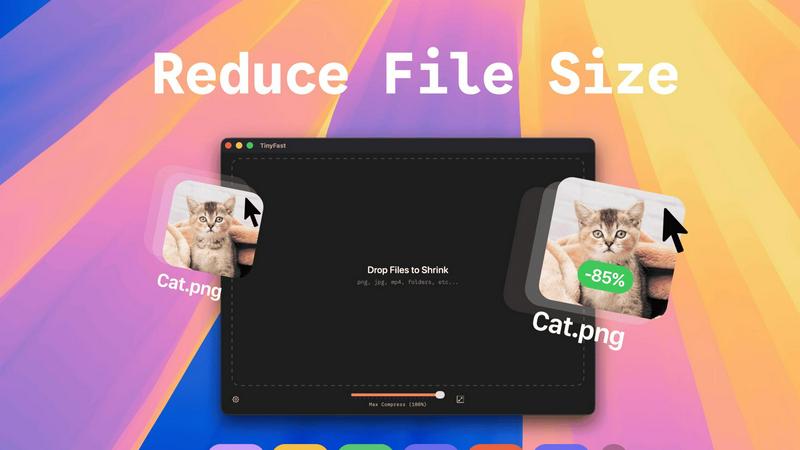
TinyFast instantly and privately compresses your files on your Mac without any uploads.
Last updated: February 28, 2026
Visual Comparison
HeyVid

TinyFast
Feature Comparison
HeyVid
Unified AI Model Hub
HeyVid consolidates the industry's leading AI video and image models into one platform. Instead of managing separate accounts for tools like Kling AI, Runway, Midjourney, or DALL-E, users can access Sora 2, Veo 3.1, and many others from a single dashboard. This feature allows creators to choose the best model for their specific project needs, whether it's cinematic quality, speed, or a particular artistic style, ensuring optimal results for every task without platform-hopping.
Professional-Grade Video Customization
The platform offers deep control over video generation to meet professional standards. Users can specify resolution up to 4K, select aspect ratios (16:9, 9:16), set a random seed for consistency, add custom watermarks, and utilize auto-translation for prompts. This level of granularity ensures the final video output aligns perfectly with brand guidelines and platform requirements, from widescreen YouTube content to vertical social media shorts.
End-to-End Creative Workflow Tools
HeyVid functions as a complete creative studio, integrating more than just generation. It supports the entire content pipeline, including implied tools for scriptwriting and storyboarding, alongside its core AI generators for video, image, voice, and music. This holistic approach solves the problem of fragmented workflows, enabling users to manage a project from the initial idea through to a polished, multi-asset final product entirely within HeyVid.
Intuitive No-Skill-Required Interface
Designed for both beginners and professionals, HeyVid emphasizes simplicity. The process is built around straightforward steps: choosing a model, writing a prompt, and generating. The intuitive controls and guided workflow mean anyone can start creating professional-level content immediately, lowering the barrier to entry for high-quality visual storytelling and democratizing advanced content creation.
TinyFast
100% Local & Private Compression
Your files never leave your Mac. TinyFast processes all compression tasks directly on your device, eliminating the need to upload sensitive documents, client assets, or confidential materials to unknown cloud servers. This privacy-by-design approach ensures total data security, making it ideal for professionals bound by NDAs or anyone who values their digital privacy. You get the benefits of file optimization without any of the security risks.
Blazing-Fast Batch Processing
Drop entire folders of files and get optimized output in seconds. TinyFast uses optimized native engines built for speed on macOS, allowing you to compress multiple images, videos, or documents simultaneously. This batch functionality saves immense time compared to handling files one by one, streamlining your workflow when preparing assets for projects, presentations, or digital delivery.
Universal File Type Support
TinyFast isn't limited to just images. It supports a comprehensive range of common file types you encounter daily. This includes images (PNG, JPG, HEIC, WEBP, GIF, SVG, BMP, TIFF), videos (MP4, MOV, M4V), documents (PDF, DOCX), audio (MP3), and even code files (JS, CSS, JSON). This versatility means you can rely on a single, trusted tool for all your compression needs across different media.
Integrated Resolution Resizing
Beyond simple compression, TinyFast gives you control over the physical dimensions of your images and videos. You can set it to automatically resize the resolution during the compression process. This is perfect for reducing file sizes even further by scaling down high-resolution assets to the exact dimensions needed for web use, social media, or email attachments, all in one step.
Use Cases
HeyVid
Startup Pitch Videos and Investor Demos
Entrepreneurs and tech founders can use HeyVid to create compelling, professional pitch videos. By describing their product vision, they can generate high-quality demo videos, brand story animations, and presentation visuals that captivate investors and stakeholders, helping to secure funding and communicate complex ideas clearly and memorably.
Social Media and Digital Marketing Campaigns
Marketing agencies and social media managers can rapidly produce ad creatives, campaign videos, and engaging posts. The ability to quickly generate both images and videos in various aspect ratios allows for the creation of cohesive, platform-specific content for Instagram Reels, YouTube Shorts, TikTok, and email marketing, significantly speeding up campaign rollout.
Educational and Training Content Creation
Educators and course creators can leverage HeyVid to build engaging learning materials. They can transform lesson scripts into explanatory videos, create animated tutorials, design course thumbnails, and produce presentation visuals. This solves the problem of high production costs and technical hurdles, making quality educational content more accessible to create.
Enterprise Communications and Internal Updates
Businesses can utilize HeyVid for professional internal and external communications. This includes creating corporate announcement videos, onboarding and training content, client presentation aids, and team update reels. It provides a consistent, polished look for all company visuals, enhancing brand perception and improving information retention.
TinyFast
Preparing Client Deliverables Securely
Designers and developers can compress project assets like high-fidelity mockups, screenshots, and demo videos before sending them to clients. Since TinyFast works locally, there's no risk of confidential work-in-progress files being stored on a third-party server, ensuring client confidentiality and meeting professional security standards effortlessly.
Optimizing Web and App Assets
Web developers and digital creators can quickly shrink folders full of website images, icons (SVG), and video content directly on their Mac. This reduces page load times and improves user experience without relying on slow online tools or complex command-line utilities. Batch processing makes optimizing an entire project's asset library fast and simple.
Managing Email Attachments
Professionals who need to email large presentations, PDF reports, or image collections can use TinyFast to reduce file sizes below typical email attachment limits. The drag-and-drop simplicity means you can compress files instantly right before attaching them, avoiding bounce-backs and ensuring your important communications are delivered without hassle.
Freeing Up Local Storage Space
Anyone running low on disk space can use TinyFast to compress old project folders, photo libraries, or video archives directly on their Mac's hard drive. By reducing the size of these files locally, you can reclaim valuable storage without deleting important work or moving files to external drives, maintaining both access and organization.
Overview
About HeyVid
HeyVid is an all-in-one AI-powered creative platform designed to solve the complex and time-consuming challenges of professional video and image production. It provides a unified workspace where entrepreneurs, marketers, educators, developers, and content creators can generate high-quality visual content quickly and simply, without needing advanced technical skills or expensive software. The core value proposition lies in its aggregation of top-tier AI models, including Sora 2, Veo 3.1, Midjourney, and Flux AI, into a single, user-friendly interface. This eliminates the need to juggle multiple subscriptions and learn different tools. HeyVid streamlines the entire creative workflow, from initial idea to final asset, supporting text-to-video, image-to-video, text-to-image, and image-to-image generation. It is built for professionals who need to produce compelling pitch videos, launch campaigns, educational content, social media clips, and marketing materials with speed, consistency, and a professional finish.
About TinyFast
TinyFast is a powerful, privacy-focused macOS application designed to solve the common and frustrating problem of large file sizes. It provides instant, local compression for a wide array of file types including images (PNG, JPEG, WebP, GIF, SVG), videos (MP4, MOV), documents (PDF), and even code files (JS, CSS, JSON). The core value proposition is simple: shrink your files quickly without ever uploading them to the internet. This addresses critical pain points for professionals who handle sensitive or confidential materials, such as developers, designers, and content creators. By processing everything directly on your Mac, TinyFast eliminates the security risks, slow upload/download times, and usage limits associated with online compression tools. Its drag-and-drop interface makes it incredibly simple to use, whether you're compressing a single screenshot or an entire folder of project assets. TinyFast is built for those who prioritize speed, security, and a seamless workflow, offering a reliable and efficient way to reduce file sizes for email, web use, or storage, all while keeping your data completely private.
Frequently Asked Questions
HeyVid FAQ
What AI models are available on HeyVid?
HeyVid provides access to a wide array of top AI models in one place. For video generation, this includes Sora 2, Veo 3.1, Kling AI, Runway, and Pika. For image generation, you can choose from models like Midjourney, Flux AI, DALL-E, and Stable Diffusion. This hub approach lets you select the perfect model for your specific creative need without multiple subscriptions.
Do I need any video editing experience to use HeyVid?
No, you do not need any prior editing experience. HeyVid is designed with an intuitive, step-by-step interface that guides you from prompt to final product. The platform handles the complex rendering and production work, allowing anyone to generate professional videos and images by simply describing their idea or uploading a base image.
What kind of video quality and resolution can I generate?
HeyVid supports professional-grade video resolutions to suit various needs. You can generate videos in 720p, 1080p (Full HD), and up to 4K quality, depending on the AI model used and your plan. You also have control over the aspect ratio, allowing you to create content optimized for widescreen displays, social media, or other specific formats.
Can I use HeyVid for commercial purposes?
Yes, content generated with HeyVid can typically be used for commercial purposes, such as in marketing campaigns, social media, and client projects. It is always recommended to review the specific terms of service for the AI model you use and your HeyVid subscription plan to confirm licensing rights for commercial use.
TinyFast FAQ
Is TinyFast really free to use?
Yes, TinyFast offers a free tier forever. This plan allows you to compress up to 5 files per day with access to all core features. It's a great way to test the app's speed and privacy benefits extensively. For unlimited use, you can upgrade to a one-time lifetime purchase or a monthly subscription, both of which start with a 3-day free trial.
How does local compression work?
Local compression means all processing happens directly on your Mac's processor. When you drag a file into TinyFast, the app uses its built-in, optimized algorithms to analyze and reduce the file size. The data is never sent over the internet to an external server. The compressed file is then saved to your chosen location on your computer, ensuring complete privacy and faster speeds.
What file types does TinyFast support?
TinyFast supports a wide variety of common file types. This includes images (PNG, JPG/JPEG, TIFF, HEIC, WEBP, GIF, BMP, SVG), videos (MP4, MOV, M4V), documents (PDF, DOCX), audio (MP3), and code files (JavaScript .JS, Cascading Style Sheets .CSS, JSON). This broad support makes it a universal tool for most file compression needs.
Can I compress an entire folder at once?
Absolutely. One of TinyFast's key features is batch processing. You can simply drag and drop an entire folder onto the app, and it will automatically compress all the supported files within it. This saves significant time compared to selecting and compressing files individually, making it ideal for optimizing project assets or cleaning up directories in bulk.
Alternatives
HeyVid Alternatives
HeyVid is an all-in-one AI video and image generator designed for productivity and content creation. It allows users to quickly produce professional-quality visual content using artificial intelligence, streamlining workflows for marketers, creators, and businesses. Users often explore alternatives to HeyVid for various reasons. These can include budget constraints, as pricing models differ significantly between tools. Others may seek specific features not offered, require integration with different platforms, or need a solution tailored to a particular use case, such as advanced editing or different output formats. When evaluating an alternative, consider your primary needs. Key factors include the quality and style of AI-generated output, the speed of generation, ease of use, and the overall cost structure. It's also wise to assess the tool's ability to integrate into your existing workflow and the specific types of video and image projects you handle most frequently.
TinyFast Alternatives
TinyFast is a privacy-focused macOS application for local file compression. It instantly reduces the size of images, videos, PDFs, and more directly on your computer, ensuring your sensitive data never leaves your machine. This places it in the category of desktop optimization and productivity tools for Mac users. Users often explore alternatives for various reasons. Some may seek different pricing models, such as a one-time purchase versus a subscription. Others might need support for additional file formats, more advanced compression controls, or a tool that works across multiple platforms like Windows or online. When evaluating alternatives, key considerations include your primary need for privacy versus convenience, the specific file types you work with most, and your budget. It's crucial to determine if you require cloud-based accessibility or if a local, offline tool better suits your security requirements and workflow speed.