RemoveTexts vs TinyFast
Side-by-side comparison to help you choose the right product.

RemoveTexts
RemoveTexts is a free AI tool that instantly removes any text or watermark from your images with a simple brush.
Last updated: March 11, 2026

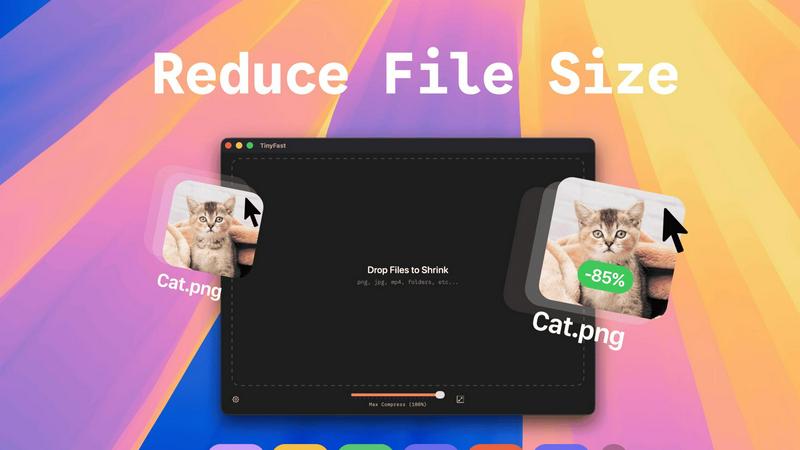
TinyFast instantly and privately compresses your files on your Mac without any uploads.
Last updated: February 28, 2026
Visual Comparison
RemoveTexts

TinyFast
Feature Comparison
RemoveTexts
Paint to Remove
This feature gives you precise control over the text removal process. Simply upload your image and use a digital brush to paint directly over the specific words, watermarks, or captions you want to erase. The AI then processes only the painted areas, ensuring you can remove text selectively while keeping other desired text intact. It's perfect for targeted edits where auto-detection might be too broad.
Auto Remove All Text
For images cluttered with multiple text elements, this one-click feature is a massive time-saver. The AI automatically scans your entire image, detects every instance of text—including watermarks, subtitles, date stamps, and overlays—and removes it all simultaneously. It seamlessly reconstructs the background in each area, delivering a completely clean image in seconds without any manual selection required.
Edit & Replace Text
Go beyond simple removal by editing existing text directly within your image. This powerful feature allows you to change words or phrases, and the AI will generate new text that matches the original font style, size, and color. It intelligently blends the new text into the background, making it look as if it was part of the original image, which is ideal for updating graphics or correcting mistakes.
Remove Objects
While focused on text, RemoveTexts also provides a versatile object removal tool. You can erase unwanted visual elements like logos, people, or distracting objects from your photos. Using the same brush tool, you paint over the object, and the AI fills in the space by analyzing the surrounding pixels, effectively removing the element while preserving the natural look of the image background.
TinyFast
100% Local & Private Compression
Your files never leave your Mac. TinyFast processes all compression tasks directly on your device, eliminating the need to upload sensitive documents, client assets, or confidential materials to unknown cloud servers. This privacy-by-design approach ensures total data security, making it ideal for professionals bound by NDAs or anyone who values their digital privacy. You get the benefits of file optimization without any of the security risks.
Blazing-Fast Batch Processing
Drop entire folders of files and get optimized output in seconds. TinyFast uses optimized native engines built for speed on macOS, allowing you to compress multiple images, videos, or documents simultaneously. This batch functionality saves immense time compared to handling files one by one, streamlining your workflow when preparing assets for projects, presentations, or digital delivery.
Universal File Type Support
TinyFast isn't limited to just images. It supports a comprehensive range of common file types you encounter daily. This includes images (PNG, JPG, HEIC, WEBP, GIF, SVG, BMP, TIFF), videos (MP4, MOV, M4V), documents (PDF, DOCX), audio (MP3), and even code files (JS, CSS, JSON). This versatility means you can rely on a single, trusted tool for all your compression needs across different media.
Integrated Resolution Resizing
Beyond simple compression, TinyFast gives you control over the physical dimensions of your images and videos. You can set it to automatically resize the resolution during the compression process. This is perfect for reducing file sizes even further by scaling down high-resolution assets to the exact dimensions needed for web use, social media, or email attachments, all in one step.
Use Cases
RemoveTexts
Cleaning Product Photos for E-commerce
Online sellers can use RemoveTexts to quickly clean up product images by erasing promotional watermarks, price tags, or distracting text overlays from supplier photos. This results in professional, brand-consistent imagery for their storefronts and marketing materials, helping products look their best and improving conversion rates without a graphic designer.
Preparing Professional Screenshots and Presentations
Professionals creating tutorials, reports, or presentations often need clean screenshots. RemoveTexts allows them to easily brush away irrelevant UI elements, browser tabs, personal data, or system watermarks from screenshots. This ensures the focus remains on the intended content, making documents and slides look polished and professional.
Redacting Sensitive Information
Legal, real estate, and administrative professionals frequently need to share documents while protecting private data. RemoveTexts provides a fast way to redact names, addresses, account numbers, or other sensitive text from scanned documents or photos before distribution, helping maintain confidentiality and comply with privacy regulations.
Creating Clean Social Media and Marketing Graphics
Content creators and marketers can repurpose existing images by removing outdated captions, website URLs, or competitor logos. This feature is perfect for refreshing old graphics, creating versatile visual assets from branded templates, or simply removing unwanted text from memes and photos to make them more shareable and on-brand.
TinyFast
Preparing Client Deliverables Securely
Designers and developers can compress project assets like high-fidelity mockups, screenshots, and demo videos before sending them to clients. Since TinyFast works locally, there's no risk of confidential work-in-progress files being stored on a third-party server, ensuring client confidentiality and meeting professional security standards effortlessly.
Optimizing Web and App Assets
Web developers and digital creators can quickly shrink folders full of website images, icons (SVG), and video content directly on their Mac. This reduces page load times and improves user experience without relying on slow online tools or complex command-line utilities. Batch processing makes optimizing an entire project's asset library fast and simple.
Managing Email Attachments
Professionals who need to email large presentations, PDF reports, or image collections can use TinyFast to reduce file sizes below typical email attachment limits. The drag-and-drop simplicity means you can compress files instantly right before attaching them, avoiding bounce-backs and ensuring your important communications are delivered without hassle.
Freeing Up Local Storage Space
Anyone running low on disk space can use TinyFast to compress old project folders, photo libraries, or video archives directly on their Mac's hard drive. By reducing the size of these files locally, you can reclaim valuable storage without deleting important work or moving files to external drives, maintaining both access and organization.
Overview
About RemoveTexts
RemoveTexts is a free, AI-powered online tool designed to solve a common digital problem: removing unwanted text and elements from images quickly and professionally. It eliminates the need for complex software like Photoshop by offering a simple, one-click solution. The tool uses advanced deep learning inpainting technology, similar to that pioneered by industry leaders, to intelligently detect text and seamlessly reconstruct the background, leaving no trace behind. It's built for anyone who works with images, from marketers and social media creators needing clean product photos and social graphics, to professionals redacting sensitive information from documents, or individuals wanting to tidy up personal screenshots and memes. The core value proposition is delivering high-quality, 4K output results in under 30 seconds without requiring any technical skills or design expertise, making professional image editing accessible to everyone.
About TinyFast
TinyFast is a powerful, privacy-focused macOS application designed to solve the common and frustrating problem of large file sizes. It provides instant, local compression for a wide array of file types including images (PNG, JPEG, WebP, GIF, SVG), videos (MP4, MOV), documents (PDF), and even code files (JS, CSS, JSON). The core value proposition is simple: shrink your files quickly without ever uploading them to the internet. This addresses critical pain points for professionals who handle sensitive or confidential materials, such as developers, designers, and content creators. By processing everything directly on your Mac, TinyFast eliminates the security risks, slow upload/download times, and usage limits associated with online compression tools. Its drag-and-drop interface makes it incredibly simple to use, whether you're compressing a single screenshot or an entire folder of project assets. TinyFast is built for those who prioritize speed, security, and a seamless workflow, offering a reliable and efficient way to reduce file sizes for email, web use, or storage, all while keeping your data completely private.
Frequently Asked Questions
RemoveTexts FAQ
How does RemoveTexts work?
RemoveTexts uses a sophisticated deep learning model called an inpainting neural network. When you paint over text or use the auto-remove feature, the AI analyzes the pixels surrounding the selected area. It then intelligently predicts and generates a new background that seamlessly matches the texture, color, and patterns of the original image, effectively filling in the space where the text was located without leaving any traces.
What image formats and sizes are supported?
The tool supports common image formats including JPG, PNG, and WebP. You can upload files up to 10 MB in size. This covers most high-resolution images from smartphones, cameras, and screenshots, ensuring the tool is versatile enough for a wide range of projects while maintaining a fast processing time.
Is RemoveTexts really free to use?
Yes, RemoveTexts is a free online tool. You can upload images, remove text or objects, and download the processed results without any cost or subscription. The service is designed to be accessible to everyone, and there is no watermark added to the images you download after using the tool.
What are the limitations of the tool?
The primary limitations are based on content and file size. The tool does not support processing NSFW (Not Safe For Work) content. Additionally, it is not designed for the removal of copyrighted logos or trademarks, as this could infringe on intellectual property rights. For optimal performance, ensure your uploaded image is under the 10 MB size limit.
TinyFast FAQ
Is TinyFast really free to use?
Yes, TinyFast offers a free tier forever. This plan allows you to compress up to 5 files per day with access to all core features. It's a great way to test the app's speed and privacy benefits extensively. For unlimited use, you can upgrade to a one-time lifetime purchase or a monthly subscription, both of which start with a 3-day free trial.
How does local compression work?
Local compression means all processing happens directly on your Mac's processor. When you drag a file into TinyFast, the app uses its built-in, optimized algorithms to analyze and reduce the file size. The data is never sent over the internet to an external server. The compressed file is then saved to your chosen location on your computer, ensuring complete privacy and faster speeds.
What file types does TinyFast support?
TinyFast supports a wide variety of common file types. This includes images (PNG, JPG/JPEG, TIFF, HEIC, WEBP, GIF, BMP, SVG), videos (MP4, MOV, M4V), documents (PDF, DOCX), audio (MP3), and code files (JavaScript .JS, Cascading Style Sheets .CSS, JSON). This broad support makes it a universal tool for most file compression needs.
Can I compress an entire folder at once?
Absolutely. One of TinyFast's key features is batch processing. You can simply drag and drop an entire folder onto the app, and it will automatically compress all the supported files within it. This saves significant time compared to selecting and compressing files individually, making it ideal for optimizing project assets or cleaning up directories in bulk.
Alternatives
RemoveTexts Alternatives
RemoveTexts is an AI-powered image editing tool that specializes in removing text and objects from any image in seconds. It belongs to the category of automated, AI-driven photo editing software designed for simplicity and speed, eliminating the need for complex programs like Photoshop. Users often explore alternatives for various reasons. Some may have specific budget constraints or require a different pricing model. Others might need features that cater to a particular workflow, such as batch processing or integration with other platforms. The choice of operating system or a preference for a one-time purchase over a subscription can also drive the search for different solutions. When evaluating other options, it's crucial to consider core needs. Key factors include the accuracy and quality of the AI's inpainting technology, the speed of processing, output resolution, and ease of use. Also, assess the range of features, such as object removal or text replacement, and ensure the tool supports the languages and file types you work with most often.
TinyFast Alternatives
TinyFast is a privacy-focused macOS application for local file compression. It instantly reduces the size of images, videos, PDFs, and more directly on your computer, ensuring your sensitive data never leaves your machine. This places it in the category of desktop optimization and productivity tools for Mac users. Users often explore alternatives for various reasons. Some may seek different pricing models, such as a one-time purchase versus a subscription. Others might need support for additional file formats, more advanced compression controls, or a tool that works across multiple platforms like Windows or online. When evaluating alternatives, key considerations include your primary need for privacy versus convenience, the specific file types you work with most, and your budget. It's crucial to determine if you require cloud-based accessibility or if a local, offline tool better suits your security requirements and workflow speed.